How to Connect Your Domain in CutMe Short
A simple step-by-step guide to connecting your custom domain or subdomain with CutMe Short so you can create branded short links that build trust and improve click-through rates.

Want to use your own domain or subdomain with CutMe Short?
A custom domain helps you create branded short links that look professional, build trust, and keep your links aligned with your brand.
Instead of sharing a generic short link, you can use a branded link such as:
https://links.yourbrand.com/sale
Or:
https://go.yourbrand.com/demo
This guide walks you through the complete process of connecting your domain inside CutMe Short, configuring DNS, enabling HTTPS, and using your connected domain for branded short links.
Quick Answer
To connect your domain in CutMe Short, go to the Domain section from the dashboard, click Connect New Domain, enter your domain or subdomain, configure optional settings such as HTTPS, fallback URL, and domain redirect, then click Add Domain. After that, copy the DNS A Record shown inside CutMe Short and add it in your domain provider. Once DNS propagation is complete, your domain will be approved and ready to use for branded short links.
What You Will Learn
By the end of this guide, you will know how to:
- Open domain settings in CutMe Short
- Connect a new custom domain or subdomain
- Understand when to use a root domain or subdomain
- Configure optional domain settings
- Add DNS records at your domain provider
- Understand pending domain status
- Fix common domain connection issues
- Start creating branded short links with your connected domain
Why Use a Custom Domain for Short Links?
A custom domain makes your links more recognizable and trustworthy.
For example, this link:
https://go.yourbrand.com/offer
Usually looks more professional than a random short URL because users can immediately identify the brand behind the link.
Benefits of Using a Custom Domain
| Benefit | Why It Matters |
|---|---|
| Stronger brand trust | People are more likely to click links that clearly belong to your brand |
| Better recognition | Your audience sees your brand every time you share a link |
| Cleaner campaigns | You can use different subdomains for different teams or campaigns |
| Professional appearance | Branded links look better in ads, emails, bios, and social posts |
| Better control | You can manage redirects, fallback URLs, and link behavior from one dashboard |
| Easier analytics | Branded short links help organize campaign performance more clearly |
If you use short links for marketing, sales, creators, affiliates, or customer communication, a custom domain is one of the most important setup steps.
Root Domain vs Subdomain: Which Should You Connect?
Before adding your domain, decide whether you want to connect a root domain or a subdomain.
Root Domain
A root domain looks like this:
yourbrand.com
Use a root domain only if you want the entire domain to be used for short links.
Subdomain
A subdomain looks like this:
links.yourbrand.com
go.yourbrand.com
click.yourbrand.com
For most businesses, a subdomain is the safer and cleaner option.
If your main website already runs on yourbrand.com, connect a subdomain such as links.yourbrand.com or go.yourbrand.com for CutMe Short. This helps you avoid disturbing your existing website while still creating branded links.
Recommended Setup
| Use Case | Recommended Domain Type | Example |
|---|---|---|
| You already have a website | Subdomain | links.yourbrand.com |
| You want a dedicated short-link domain | Root domain | brand.link |
| You run different campaigns | Multiple subdomains | go.yourbrand.com, offer.yourbrand.com |
| You want safer setup | Subdomain | c.yourbrand.com |
Step 1: Open Domain Settings
First, log in to your CutMe Short account.
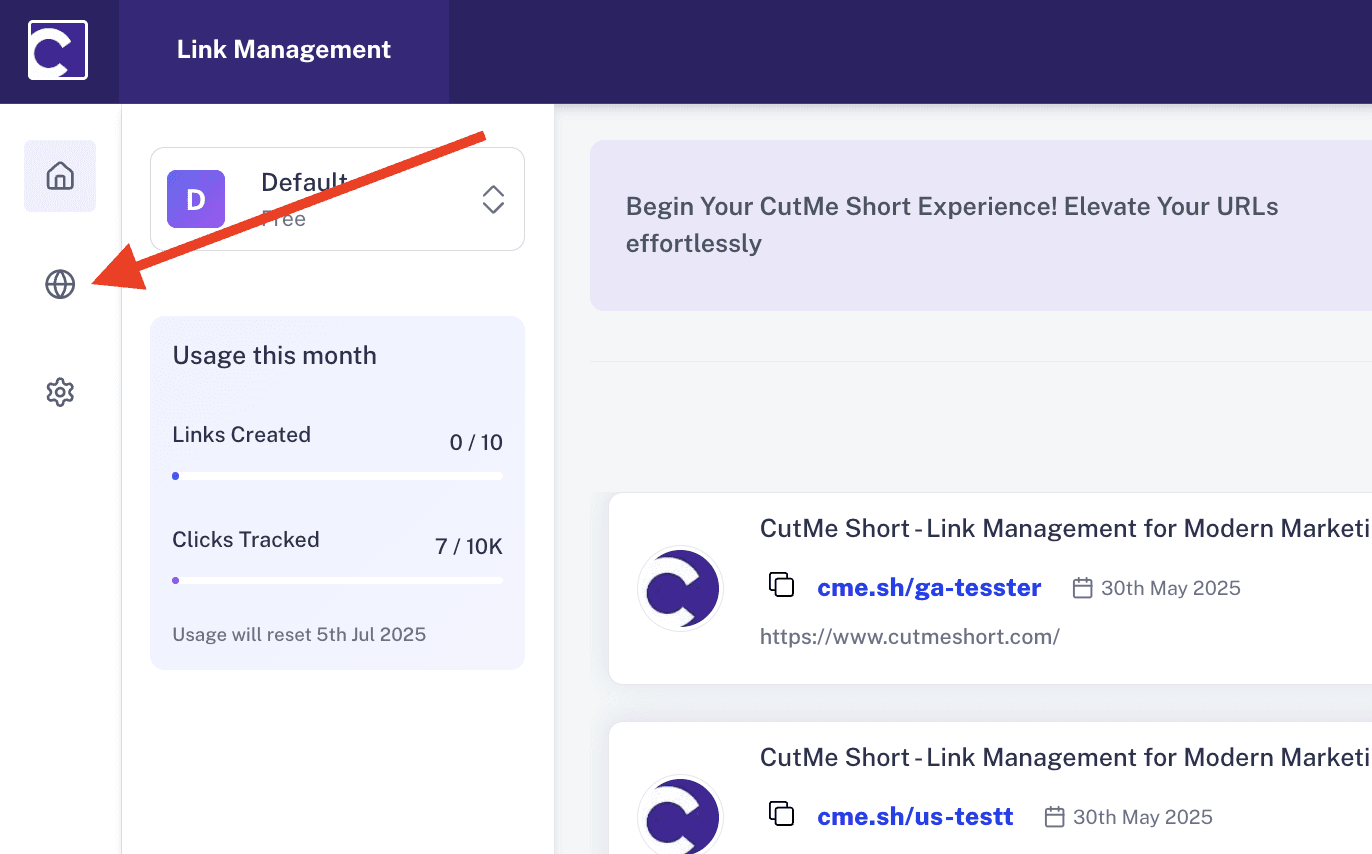
From the dashboard, open the left sidebar menu and click Domain.
This is where you can connect, view, and manage your custom domains.
Step 2: Connect a New Domain
Inside the Domain section, click Connect New Domain.
A popup will open where you can enter the domain or subdomain you want to connect.
Examples:
links.yourbrand.com
go.yourbrand.com
yourbrand.link
After entering the domain, CutMe Short checks whether the domain is available to connect.
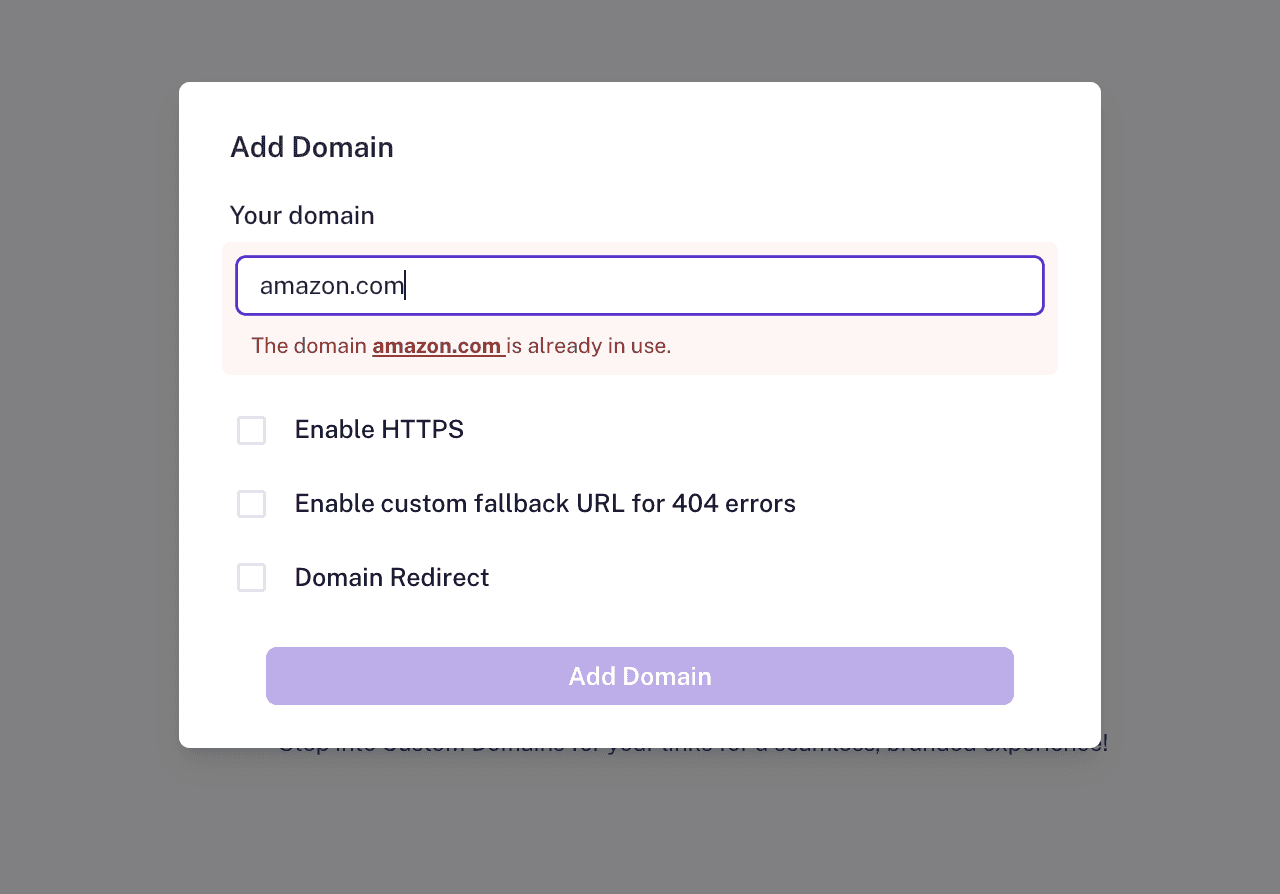
If the domain is ready, you will see a confirmation message similar to:
The domain xyz.com is ready to connect.
Once you see this confirmation, you can continue to the next step.
Step 3: Configure Optional Domain Settings
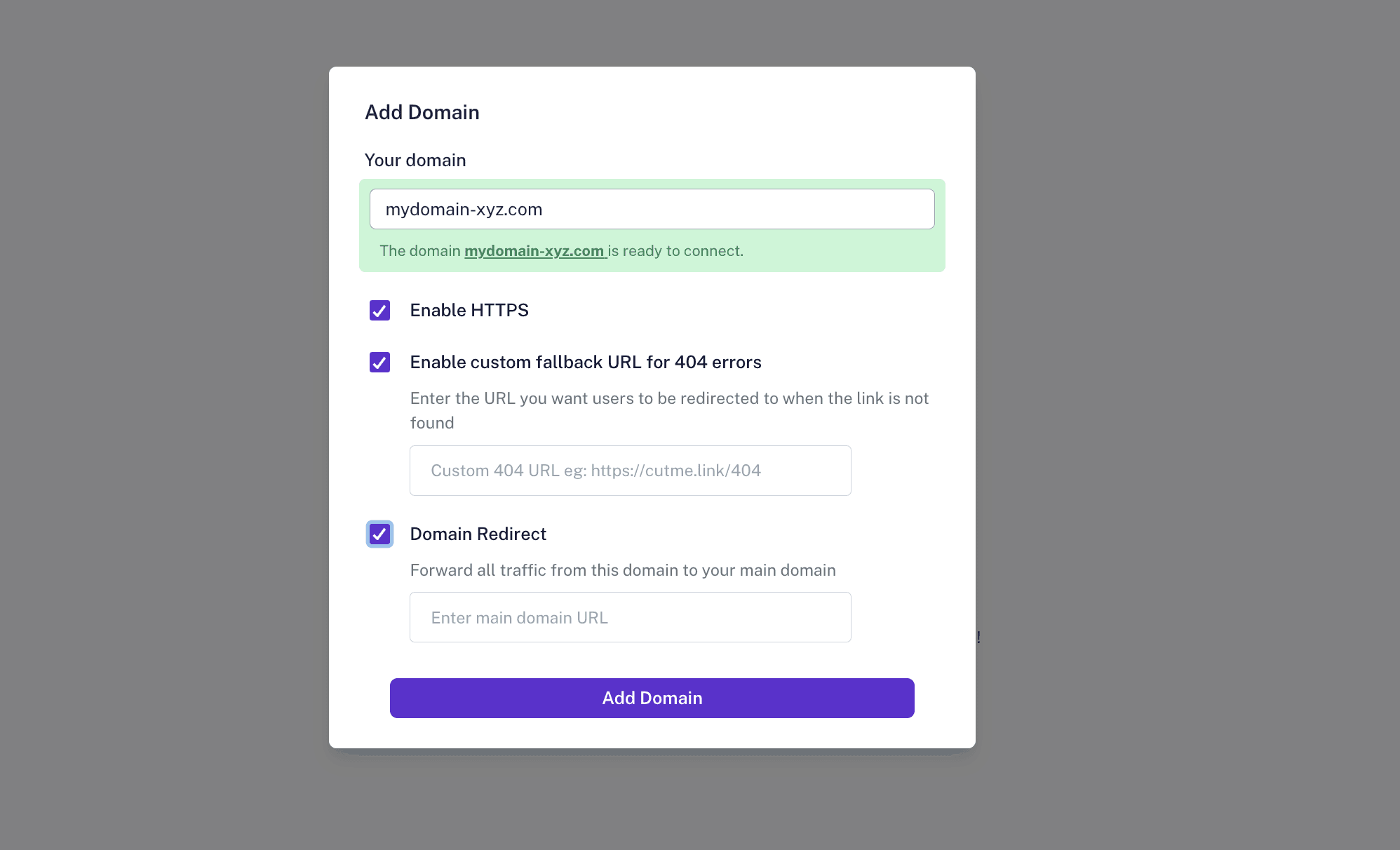
Before finalizing the domain, you can configure optional settings depending on your use case.
These settings help you control security, broken links, and root-domain behavior.
Enable HTTPS
Enable HTTPS to secure your short links with SSL encryption.
HTTPS is important because it helps visitors trust your links and prevents browsers from showing security warnings.
A branded short link should ideally look like this:
https://links.yourbrand.com/demo
Instead of:
http://links.yourbrand.com/demo
Custom Fallback URL for 404 Errors
A fallback URL helps you decide where visitors should go if they open an invalid, deleted, broken, or unavailable short link on your custom domain.
For example, if someone opens:
https://links.yourbrand.com/wrong-slug
You can redirect them to:
https://yourbrand.com
Or to a custom landing page, support page, or campaign page.
This helps you avoid sending visitors to a dead-end error page.
Domain Redirect
Domain redirect lets you redirect your root or naked domain traffic to another URL of your choice.
For example, if someone opens:
https://links.yourbrand.com
You can redirect them to:
https://yourbrand.com
This is useful when you want your domain itself to lead somewhere meaningful instead of showing a blank or default page.
Step 4: Add the Domain
After reviewing the optional settings, click Add Domain.
Your domain will now appear in a Pending state.
This means CutMe Short has added the domain, but the DNS records still need to be configured at your domain provider.
Examples of domain providers include:
- GoDaddy
- Namecheap
- Cloudflare
- Hostinger
- Google Domains / Squarespace Domains
- BigRock
- Bluehost
- Any other DNS hosting provider
Step 5: Add the DNS A Record
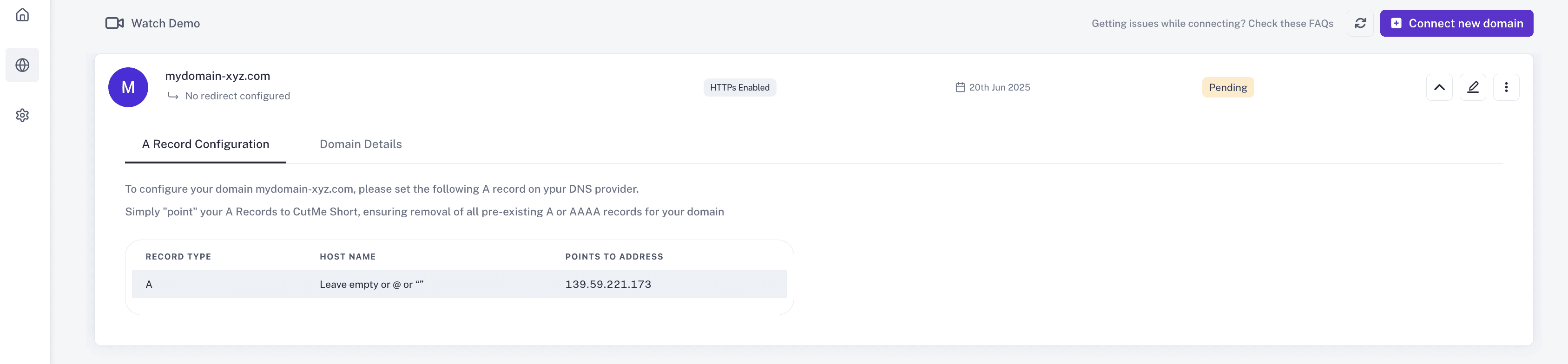
Click on the pending domain to expand it.
CutMe Short will show the required A Record configuration.
Go to your domain or DNS provider and add the A Record exactly as shown inside your CutMe Short dashboard.
What Is an A Record?
An A Record is a DNS record that points your domain or subdomain to a server IP address.
In simple words, it tells the internet:
When someone visits this domain, send the request to this server.
CutMe Short shows you the exact A Record value required for your domain. Copy it carefully from the dashboard and add it in your DNS provider.
General DNS Fields You May See
Different DNS providers use slightly different labels, but most of them ask for similar fields.
| DNS Field | What to Add |
|---|---|
| Type | A |
| Name / Host | Your subdomain part, such as links or go, or @ for root domain |
| Value / Points to | The IP address shown inside CutMe Short |
| TTL | Default or automatic is usually fine |
Example for a Subdomain
If you are connecting:
links.yourbrand.com
Your DNS provider may ask for:
Type: A
Host: links
Value: Copy the IP shown in CutMe Short
TTL: Auto
Example for a Root Domain
If you are connecting:
yourbrand.com
Your DNS provider may ask for:
Type: A
Host: @
Value: Copy the IP shown in CutMe Short
TTL: Auto
Always use the exact DNS value shown in your CutMe Short dashboard because DNS instructions may change over time.
Step 6: Wait for DNS Propagation
After you add the DNS record, it may take some time for the changes to update globally.
DNS propagation can take:
- A few minutes
- A few hours
- In some cases, up to 24 to 48 hours depending on the DNS provider
During this period, your domain may continue showing as Pending inside CutMe Short.
This is normal.
Once the DNS record is detected and approved, your domain will become active and ready to use.
Step 7: Start Creating Branded Short Links
After your domain is approved, return to the CutMe Short dashboard.
When creating a new short link, select your connected custom domain from the domain dropdown.
For example, you can create branded links like:
https://links.yourbrand.com/pricing
https://links.yourbrand.com/demo
https://links.yourbrand.com/offer
https://links.yourbrand.com/youtube
Your audience will now see your brand in every short link you share.
Common Mistakes to Avoid
Here are the most common mistakes users make while connecting a domain.
| Mistake | Why It Causes Issues | How to Fix It |
|---|---|---|
| Connecting the main website domain without planning | It may interfere with an existing website | Use a subdomain like links.yourbrand.com |
| Adding the wrong DNS record type | CutMe Short expects the required record shown in the dashboard | Use the A Record shown inside CutMe Short |
| Typing the wrong host value | The DNS record may point the wrong domain | Use links for links.yourbrand.com or @ for root domain |
| Adding multiple conflicting A records | DNS may resolve incorrectly | Keep only the required record for that host |
| Expecting instant approval | DNS updates take time | Wait for propagation and recheck later |
| Using an unverified or unavailable domain | CutMe Short cannot approve it | Make sure you control the domain and DNS settings |
| Forgetting HTTPS | Visitors may see insecure warnings | Enable HTTPS where available |
Troubleshooting: Domain Still Pending
If your domain remains pending for longer than expected, check the following.
1. Did You Add the Correct A Record?
Open your CutMe Short domain settings and compare the required A Record with the DNS record in your domain provider.
Make sure the value matches exactly.
2. Did You Add the Correct Host?
For a subdomain like:
links.yourbrand.com
The host is usually:
links
For a root domain like:
yourbrand.com
The host is usually:
@
Some providers may use different labels, so check your DNS provider's instructions if needed.
3. Are There Conflicting Records?
If the same host has multiple A records or conflicting CNAME records, DNS resolution may fail.
Remove records that conflict with the CutMe Short setup.
4. Has DNS Propagation Completed?
DNS can take time.
Even if you configured everything correctly, your domain may remain pending until DNS changes propagate.
5. Are You Using Proxy Settings?
If your DNS provider uses proxy settings, such as Cloudflare proxy mode, the record may behave differently.
If approval fails, try using DNS-only mode for the connected record and check again.
6. Did You Connect the Right Domain?
Make sure the domain entered inside CutMe Short matches the DNS record you added.
For example, if you added links.yourbrand.com in CutMe Short, do not only configure yourbrand.com.
Custom Domain SEO Checklist
Before using your custom domain publicly, review this checklist.
- Use a short and clear branded domain or subdomain
- Prefer a subdomain if your main website already exists
- Enable HTTPS
- Add the correct A Record from CutMe Short
- Avoid conflicting DNS records
- Set a fallback URL for broken links
- Configure root/domain redirect if needed
- Test the domain after approval
- Create a sample short link and open it in a browser
- Monitor click analytics after sharing links
Custom Domain AEO Checklist
AEO, or Answer Engine Optimization, helps content answer user questions clearly for AI-powered search engines and answer engines.
This guide is structured to be AEO-friendly by including:
- Direct answers near the top
- Step-by-step setup instructions
- Clear definitions for DNS and A Records
- Tables for root domain vs subdomain comparison
- Troubleshooting guidance
- FAQ-style questions and answers
- Simple explanations for non-technical users
This makes the content easier for both readers and answer engines to understand.
Frequently Asked Questions
Can I connect my own domain to CutMe Short?
Yes. CutMe Short allows you to connect your own domain or subdomain so you can create branded short links.
Should I connect my root domain or a subdomain?
If your main website already uses your root domain, it is usually better to connect a subdomain such as links.yourbrand.com or go.yourbrand.com. This avoids interfering with your existing website.
What DNS record do I need to add?
CutMe Short shows the required A Record after you add your domain. Copy the A Record exactly as shown and add it in your DNS provider.
What is an A Record?
An A Record is a DNS record that points a domain or subdomain to an IP address. It helps route visitors from your branded domain to the correct server.
Why is my domain showing as pending?
Your domain may show as pending because DNS propagation is still in progress, the A Record was added incorrectly, the host value is wrong, or there are conflicting DNS records.
How long does domain approval take?
DNS changes can take a few minutes to a few hours. In some cases, depending on your DNS provider, propagation can take up to 24 to 48 hours.
Can I enable HTTPS for my custom domain?
Yes. You can enable HTTPS from the optional domain settings so your branded short links use SSL encryption.
What is a fallback URL?
A fallback URL is the page visitors are redirected to when they open a broken, invalid, deleted, or unavailable short link on your custom domain.
What is domain redirect?
Domain redirect lets you redirect your root domain or custom domain homepage to another URL of your choice.
Can I use my connected domain for all new links?
Yes. Once your domain is approved, you can select it while creating new short links in CutMe Short.
Will connecting a custom domain affect my existing website?
It can if you connect your main root domain that is already used by your website. To avoid this, use a subdomain such as links.yourbrand.com.
What should I do if I need help?
You can contact CutMe Short support at support@cutmeshort.com with your domain name, DNS screenshots, and the issue you are facing.
Connect Your Custom Domain Today
Your short links should look like they belong to your brand.
With CutMe Short custom domains, you can connect your own domain or subdomain, secure links with HTTPS, configure fallback behavior, and create branded links for campaigns, social media, QR codes, emails, and more.
The setup flow is simple:
- Open the Domain section.
- Click Connect New Domain.
- Enter your domain or subdomain.
- Configure optional settings.
- Click Add Domain.
- Add the A Record shown in CutMe Short to your DNS provider.
- Wait for approval.
- Start creating branded short links.
Once connected, your domain becomes a powerful part of your link management system.
Start using your branded domain with CutMe Short and make every link more trustworthy, recognizable, and professional.